Before you start
- An OptimalCentral account. You connect from the Connections page.
- An Amazon account that sells in the United States, Canada or Mexico. A Seller account that sells in none of them is refused, and nothing is saved.
- The Amazon login that owns the account, or a login the owner gave the right permission. See Access Required.
- Not every tool needs a connection. ASIN-based tools such as the Listing Audit need only an ASIN.
Connect your Seller Central account
- Open Connections and click Connect Amazon seller account. You go to Amazon’s consent page on sellercentral.amazon.com.
- Sign in to Seller Central with the login that owns the account, or one with the Selling Partner Appstore permission.
- Approve on Amazon’s page. Amazon sends you back to the Connections page.
- We check the account before we save anything. It must sell in the United States, Canada or Mexico, and Amazon must confirm that the seller account belongs to the login you used.
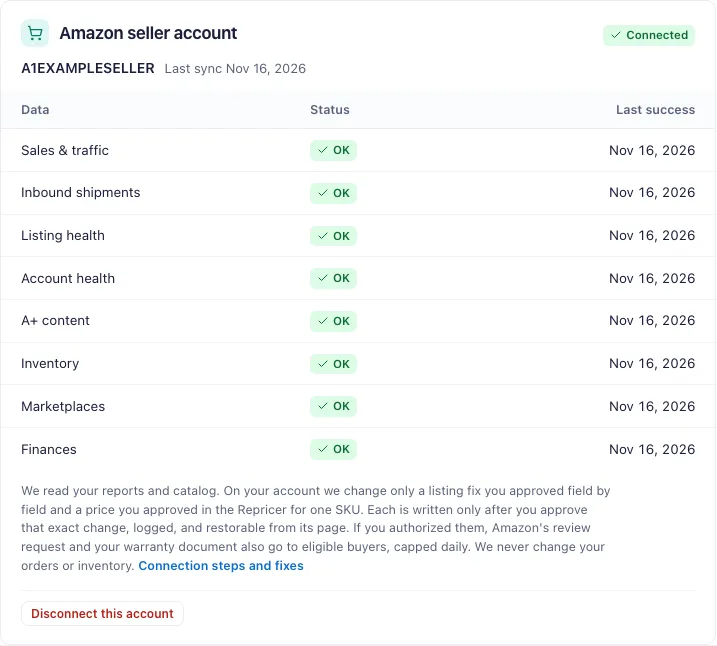
- The first pull starts. The card lists each data source and its last sync.
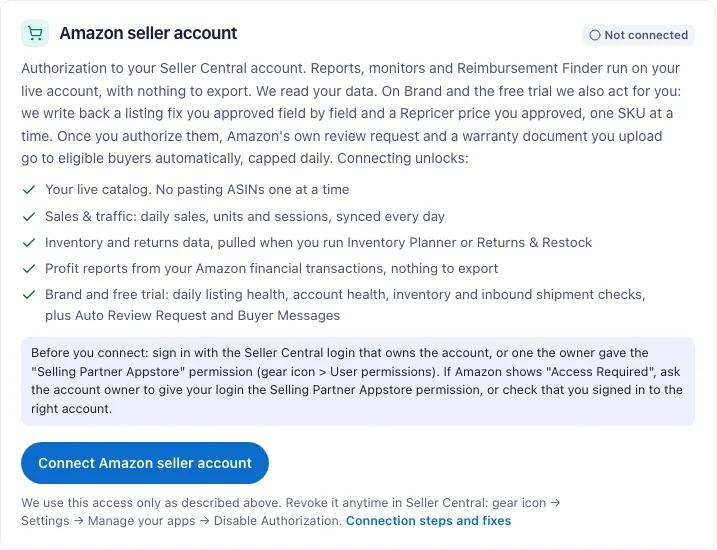
What this connection lets us do: read your reports and catalog. On Brand and the free trial we also write back a listing fix you approved field by field, and a Repricer price you approved for one SKU. Auto Review Request and Buyer Messages send only after you authorize them.
Connect your Vendor Central account
- Click Connect Amazon vendor account on the Connections page. You go to Amazon’s consent page on vendorcentral.amazon.com.
- Sign in to Vendor Central with the login that manages the account.
- Approve on Amazon’s page. Amazon sends you back to the Connections page.
The vendor connection is separate from the seller connection. You can hold both. The two never mix data.
Connect Amazon Ads
The Amazon Ads card has two rows: Seller ads and Vendor ads. Each row is its own authorization.
- Click Connect seller ads or Connect vendor ads. You go to Amazon’s login page on www.amazon.com.
- Sign in with the Amazon login that runs those ads and approve.
- We read the Ads accounts on that login. If it has none on Amazon’s North America ads system, or none for the row you clicked, the login is not kept.
- Choose an Ads account per marketplace when a marketplace has more than one. Nothing syncs for a marketplace until you choose.
- Click Refresh accounts after you open a new Ads account, so the row lists it.
Agency advertising accounts are not supported. Bids and budgets change only after you approve that exact change.
Errors on Amazon’s page
“Access Required”
In our test on October 15, 2026, a secondary Seller Central user without the Selling Partner Appstore permission saw “Access Required”. With the permission, the authorization page loaded. Two fixes:
- Sign in with the account’s primary login.
- Ask the primary account administrator to give your login the permission. Amazon sets permissions under Settings > User Permissions, and tells a user who lacks one to ask the primary account administrator (Set and edit user permissions).
Also check that you signed in to the right account.
Error code MD1000, MD9000 or MD9100
Amazon lists these as app configuration errors and tells sellers to send the App ID and the code to the developer (App authorization errors on Manage Your Apps). Send both to Support.
You clicked Cancel
Our page says “Connection cancelled. You did not approve access.” Nothing was saved. Start again and approve.
Errors on our page
When we refuse a connection, a red banner on the Connections page says why. The table lists each banner by its first words.

| Banner starts with | What happened | What to do |
|---|---|---|
| That connection link expired | The sign-in did not match this browser session, for example an old tab. | Click Connect again. |
| That Amazon login belongs to a different account | A different Amazon account is already connected here. | Disconnect the current one, then connect the new one. |
| That Amazon seller account is already connected to another OptimalCentral account | One Amazon seller account connects to one OptimalCentral account. Nothing was saved. | Ask whoever connected it to disconnect it, or to add you to their workspace as a teammate. |
| That Amazon account does not sell in the United States, Canada or Mexico | We support only those three marketplaces. Nothing was saved. | To remove OptimalCentral, use Manage Your Apps in Seller Central. |
| Amazon did not say which marketplaces that account sells in | Amazon’s answer was missing. Nothing was saved. | Connect again. |
| That authorization did not come from Seller Central or Vendor Central | The sign-in did not start on an Amazon page we accept. | Start again from the Connect button on the Connections page. |
| Amazon did not confirm that seller account for this login | The seller account and the login did not match. Nothing was saved. | Start again from the Connections page. |
| Could not confirm your seller account with Amazon | Amazon did not answer the check. Nothing was saved. | Retry in a few minutes. |
| Amazon lists no Ads accounts for that login | The login has no Ads account on Amazon’s North America ads system. Nothing was saved. | Connect with the Amazon login you advertise under. |
| This Amazon Ads login has no seller Ads accounts | You clicked Connect seller ads with a login that has none. | Sign in with the login that manages your seller ads. |
| This Amazon Ads login has no vendor Ads accounts | You clicked Connect vendor ads with a login that has none. | Sign in with the login that manages your vendor ads. |
| That connection did not say seller ads or vendor ads | The connection started without a row. Nothing was saved. | Start again from Connect seller ads or Connect vendor ads. |
| Your Amazon Ads login is connected, but Amazon did not return your Ads accounts | The login is saved. The list of Ads accounts did not load. | Click Refresh accounts on the Amazon Ads card. |
| A store on your subscription already uses every Ads account on that login | Enterprise: each Ads account belongs to one store. Nothing was saved. | Connect a login with another Ads account, or disconnect it from the other store first. |
| Could not connect your account | Something else failed. | Retry. If it fails again, contact Support. |
Renew every 365 days
Amazon requires sellers and vendors to re-authorize a public app every 365 days (Authorize public applications). When an app returns a 403 error, Amazon’s fix is to re-authorize it (Resolve a 403 error).
When Amazon stops accepting our access, the card shows Reconnect needed. Click Reconnect. Reconnecting the same Amazon account keeps your data and history.
Disconnect
Seller or Vendor account
- Click Disconnect this account on its card.
- We delete the stored credentials and stop automatic pulls.
- Data synced from that account is permanently deleted 7 days later. Reconnect the same account within 7 days to keep it.
Amazon Ads
- Click Disconnect seller ads or Disconnect vendor ads. Each row disconnects on its own.
- Automation rules on that side pause. Anything a rule paused stays paused; the Ads Audit page lists it to re-enable after you reconnect.
- Saved keyword data for that side is deleted. Past audits are kept.
From Amazon’s side
In Seller Central, Manage Your Apps lists the apps you authorized (Amazon’s help page). Revoking there stops our access. Disconnect on our page as well, so we delete the stored credentials.
Common questions
Which marketplaces can I connect?
The United States, Canada and Mexico. A Seller account that sells in none of them is refused, and nothing is saved.
Do I need a connection for every tool?
No. ASIN-based tools need only an ASIN. Profit, inventory, returns and reimbursement tools need the Seller connection. Ads tools need Amazon Ads. The Help Center lists which tool needs what.
Can I connect a seller and a vendor account?
Yes. They are separate connections with separate cards.
Can a teammate use my connection?
Yes, through a Team seat in your workspace. Seats start on Brand. A second OptimalCentral account cannot connect the same Amazon seller account.
Why does my card say Reconnect needed?
Amazon stopped accepting our access, for example after 365 days or after a revoke in Manage Your Apps. Click Reconnect on the card.