What it does
Each audit reads your Sponsored Products campaigns, keywords, product targets and search terms, plus Sponsored Brands and Sponsored Display campaigns, over the most recent 30 days whose orders Amazon has finished attributing. It runs fixed checks on that data, adds an AI diagnosis at account level, and lists every proposed change in one place.
Who it is for
Sellers and vendors running Sponsored Products who want to know where spend leaks before changing bids.
What you need
- Your Amazon Ads account, connected once on the Connections page through Amazon’s own consent page.
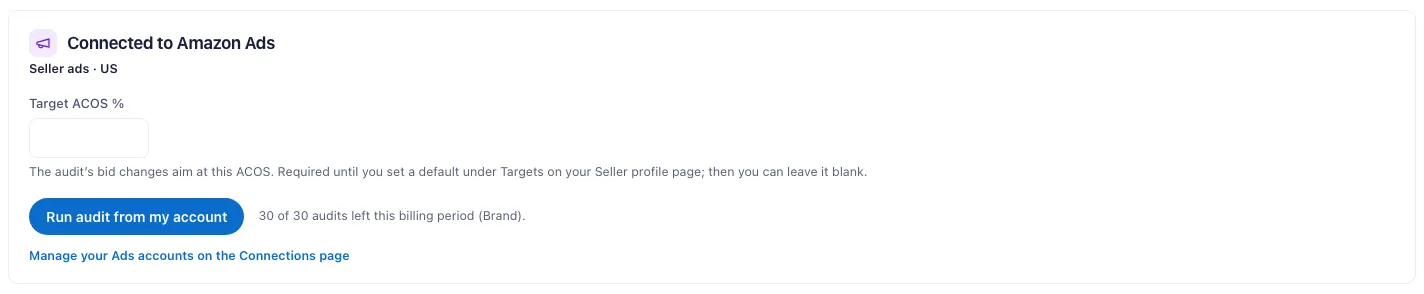
- A target ACOS for the audit.
- If you have more than one advertising account connected, choose which one to audit.
- No file export.
Step by step
- Connect Amazon Ads on the Connections page.
- Open the Ads Audit from the Tools menu and set your target ACOS.
- Start the audit. Amazon prepares the reports first, which can take ten minutes or more. You can leave the page.
- Review the findings: wasted spend, high-ACOS targets, negative-keyword candidates and the AI diagnosis.
- Tick the changes you agree with: bid updates, pauses, negatives.
- Send them to Amazon. Brand, Enterprise and the free trial apply the ticked changes from the audit page. On Pro, download the change file and upload it in Amazon’s Bulk operations.
What you get
- Wasted spend: enabled keywords and targets with no orders in the audited 30 days, once their clicks reach the number at which one converting like the rest of your account would have produced an order 95% of the time. Each shows its dollars spent.
- Bid fixes: a new bid for each high-ACOS target, from its cost per click and your target ACOS.
- Negative-keyword candidates: search terms that take clicks without converting.
- Room to grow: efficient targets with room to raise bids, and auto campaigns with no negative keywords.
- Amazon’s suggested bid: for keywords with a proposed bid change, Amazon’s own suggested range and median, shown next to ours. Display only.
- Break-even & max CPC tab: break-even ACOS and maximum cost per click for each Sponsored Products keyword and target, from your latest Profit report and product costs. Vendor accounts: the cost price Amazon pays you, minus the unit cost you enter on the tab, over the retail price.
- Change file: a bulk file of the Sponsored Products bid updates, pauses and negatives, addressed by campaign, ad group, keyword and target IDs.
Campaign Triage
Open it from the Tools menu (Advertise → Campaign Triage). Every Sponsored Products, Brands and Display campaign with 0 orders gets one verdict:
- No impressions: the campaign is not showing, and the reason when Amazon’s data shows one.
- Fix the listing: it shows, but its click-through rate is far below your older campaigns for the same product.
- Check the listing: clicks passed the line at which your older campaigns would have sold, and a listing check fails. A stock or Featured Offer check fails when the days with the problem took at least half of the campaign’s clicks on that product. A price change is shown, not counted as a failure.
- Change the ads: clicks passed that line and the listing checks pass.
- 0 orders so far: clicks reached twice that line with 0 orders while Amazon is still counting orders for the newest clicks. A product with no older campaigns of the same ad type has no line of its own; for this warning only, Brian uses your account's slower-converting products of that ad type (the slowest 10% of clicks), and the page says so.
- Wait: not enough settled clicks yet to judge.
- Can’t judge: at the campaign’s own clicks per day, the line is more than 30 days away.
A new campaign with orders is flagged ACOS over target when its ACOS on settled days is at least twice the target ACOS on your Seller Profile. A Sponsored Display campaign with orders counting views is not listed as a 0-order campaign.
New campaigns are judged from their start date, older ones on their last 30 settled days. A campaign is compared only with your older campaigns for the same product. You can set the thresholds on your Seller Profile. Sponsored Brands and Display are judged on click-attributed orders; the page also shows the ACOS Amazon’s console reports, which counts views.
On Pro, click Pull from Amazon to read your campaigns, once per account per day. From Brand, the daily sync keeps the page current, and you can add a Sponsored Brands search term as a negative exact keyword, one approved term at a time.
ACOS Diagnosis
Brand plan and the free trial. Open it from the Tools menu (Advertise → ACOS Diagnosis), or from the “See why” link in an alert email.
- ACOS spike: the morning the daily monitor flags a spike, Brian compares the last 14 settled days with the 14 before.
- ACOS rising: every Monday, Brian checks whether ACOS has risen three 28-day periods in a row and ended above your target ACOS.
- What it finds: whether cost per click, conversion or order value moved ACOS, then the campaigns, targets and search terms behind it.
- What it removes first: Amazon sale-event days and your own promotion days.
- What you can do: add the search terms it lists as negatives, one approved term at a time. Each action shows the orders and sales that term brought in.
Plans & limits
| Free trial (14 days) | Pro | Brand | Enterprise | |
|---|---|---|---|---|
| Ads Audits | 2 for the whole trial, at least 7 days apart | 10 per billing period | 30 per billing period | 100 per billing period, shared across your stores |
| Audit report and change file | Yes | Yes | Yes | Yes |
| Apply ticked changes to your account | Yes | No: upload the change file yourself | Yes | Yes |
| Daily ads monitor, rules, dashboards | Yes | No | Yes | Yes |
| Campaign Triage | Yes | Yes, on demand | Yes, synced daily | Yes, synced daily |
| ACOS Diagnosis (spike and rising ACOS) | Yes | No | Yes | Yes |
Each run counts once, including a re-run over the same 30 days. Reverting a change applied earlier needs only an active plan.
On a connected account from the Brand plan, Brian acts for you within the permissions you grant. Bid and budget changes always wait for your approval, change by change. Dayparting, negative keywords and pausing ads on low or no stock run on their own after a one-time authorization, each with a daily cap. Editing a rule revokes its authorization until you confirm again.
Common questions
Where does the audit get my campaign data?
From your Amazon Ads account, through the connection you authorize on Amazon’s consent page. No file to export.
Why does the audit take ten minutes or more?
Amazon prepares the reports before we can read them. You can leave the page; the audit finishes in the background.
Will anything change in my account?
Nothing changes until you act. On Brand, Enterprise and the trial, only the changes you tick are applied. On Pro, you upload the change file yourself.
Which campaign types are covered?
Sponsored Products in full, with changes you can apply. Sponsored Brands and Sponsored Display get their own report section, down to keyword and target level. The change file covers Sponsored Products only.
Why can’t the Break-even tab calculate a keyword?
It needs your product costs. Sellers enter them on the Profit page; vendors enter a unit cost per ASIN on the Break-even tab. A vendor ASIN also needs a cost price: the net cost on a purchase order from the last 60 days, or else shipped units in the audit window.